Goal
Browse the built-in audit rules by category tree, severity filter, and search, and inspect each rule’s enable state, category, severity, threshold, and parent node.Prerequisites
No special prerequisites beyond access to the Audit platform’s Manage Rules page.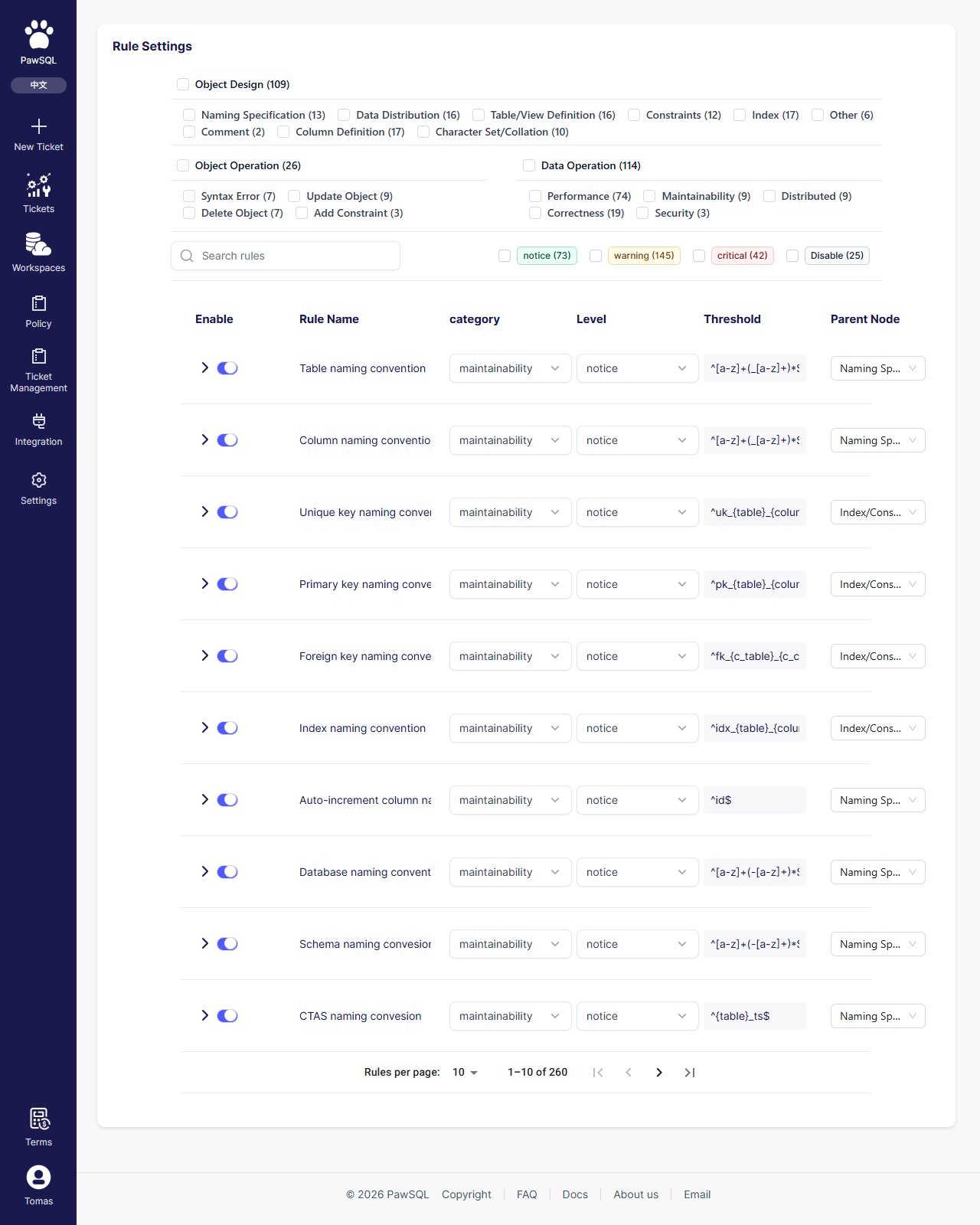
Manage Rules: category tree and severity filter on the left, rule table on the right
Page layout
- Left: category tree (top-level category → subcategory), severity filter (notice / warning / critical / Disable), and search box;
- Right: rule table with the columns Enable, Rule Name, Category, Level, Threshold, and Parent Node.
Rule categories
Rules are organized into three top-level categories — Object Design, Object Operation, and Data Operation — each divided into subcategories:Locate rules
- Category tree: click a category or subcategory to filter rules in it;
- Severity filter: filter by notice / warning / critical / Disable;
- Search: type a rule-name keyword in the search box.
Rule severity
Each audit rule has a severity that marks how serious its findings are, in three levels from lightest to most severe: notice, warning, critical.Rule table columns
Thresholds
The form of a rule’s threshold depends on the rule. Naming-convention rules use a regular expression to constrain object-name format:
Rules and thresholds in the built-in default template are read-only. To customize them, first create a local template from a global template (see Manage Review Policies), then enable, disable, or adjust rules on the local template.